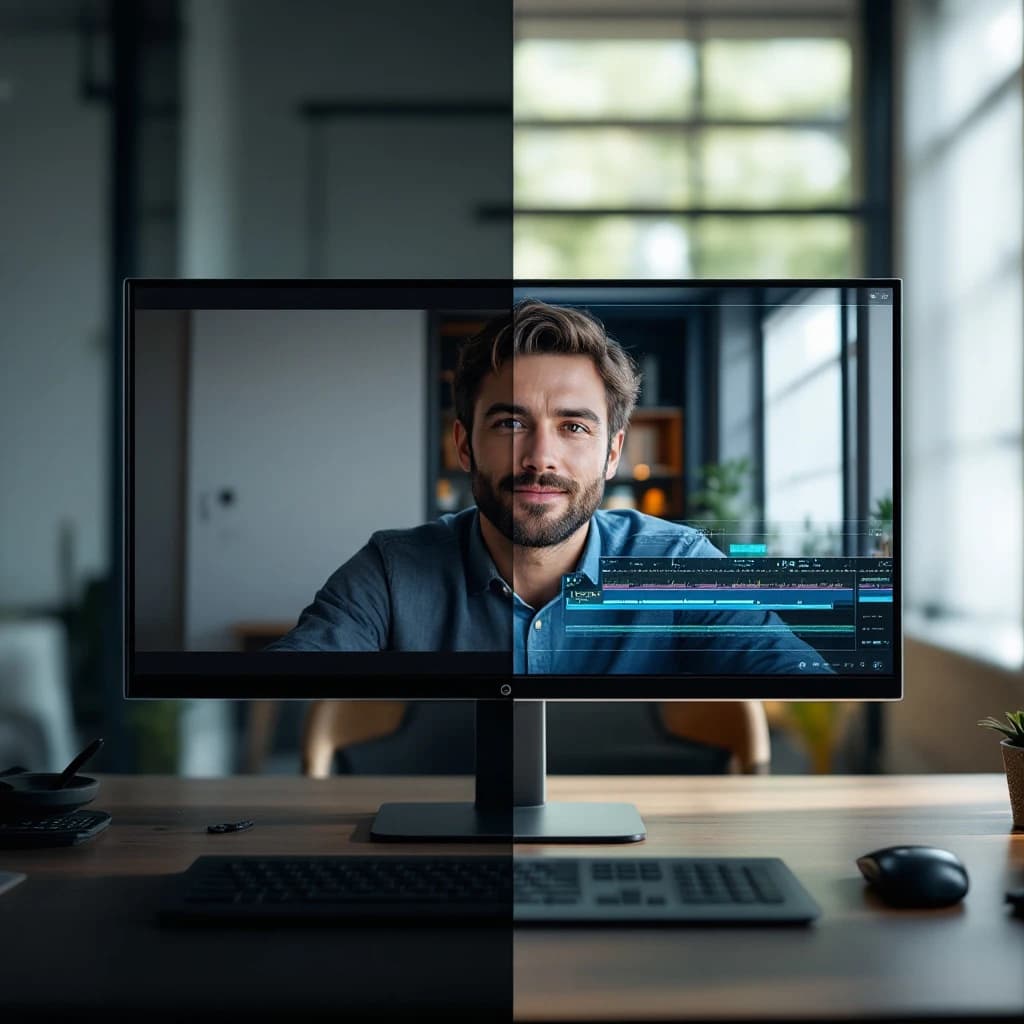
AI text-prompt video editing tools like Gemini Omni Flash and Higgsfield let you modify existing video footage by typing what you want to change. Instead of manually masking, rotoscoping, or compositing frame by frame, you describe edits in plain language and the AI handles background replacement, object modification, and actor swapping while automatically preserving motion, lighting, shadows, and reflections. This is fundamentally different from text-to-video generation tools that create footage from scratch. You're working with real footage and applying surgical edits that adapt to the original scene's physics and lighting conditions.
What Is Text-Prompt Video Editing and How Does It Differ from AI Video Generation?
Text-prompt video editing takes existing video footage and modifies specific elements through natural language commands. You upload a clip of someone walking through an office, type "replace background with tropical beach," and the AI repaints the background while maintaining the person's original motion, shadows falling naturally on sand, and lighting that matches the new environment.
Traditional AI video generation tools like Sora or Runway Gen-3 create entirely new footage from text descriptions. Text-prompt editing tools work with your existing footage, preserving the camera movement, actor performance, and timing while changing visual elements. This matters when you need consistent branding, specific performances, or footage you've already shot.
The technical difference lies in temporal consistency and motion preservation. These tools analyze motion vectors, depth maps, and lighting conditions across consecutive frames, then apply edits that respect the original scene's physics. Gemini Omni Flash processes approximately 24-30 frames per second while maintaining coherent edits across the entire clip, which requires substantially more computational power than generating new frames independently.
Why Text-Prompt Video Editing Matters for Content Creators and Businesses
Traditional video editing for background replacement requires green screens, manual rotoscoping in After Effects or DaVinci Resolve, and hours of frame-by-frame cleanup. A 30-second clip with a moving subject can take 4-6 hours to composite properly. Text-prompt editing reduces this to minutes.
For small businesses producing product videos, this changes budget calculations entirely. Instead of booking studio time with proper lighting and backgrounds, you can shoot against any clean wall and add professional environments afterward. A marketing team that previously outsourced video editing at $150-300 per finished minute can now handle edits in-house.
Content creators benefit from rapid iteration. Test three different backgrounds for the same talking-head video, swap a t-shirt color to match brand guidelines, remove distracting objects from the frame without reshooting. The ability to modify footage after the fact removes the pressure of getting every detail perfect during production, which honestly makes the entire creative process less stressful.
The technology also enables localization that wasn't economically feasible before. Swap signage language in the background, change product packaging to match regional variants, or modify clothing for cultural appropriateness without reshooting footage in multiple markets.
Gemini Omni Flash Video Editing Tutorial: Step-by-Step Process
Gemini Omni Flash is Google's multimodal AI model that processes video, audio, and text simultaneously. The "Omni" designation means it handles multiple input types, while "Flash" indicates the optimized, faster variant of the full Gemini model. It's accessible through Google AI Studio and via API for developers.
Setting Up Your First Edit
Access Gemini Omni Flash through Google AI Studio at aistudio.google.com. You'll need a Google account and acceptance of the experimental features terms. The interface supports video uploads up to 2GB or approximately 10 minutes at 1080p resolution.
Upload your source footage by dragging the file into the prompt window. Gemini processes the video and generates a thumbnail preview showing it's ready for editing. Processing time runs about 30-45 seconds for a 1-minute clip at 1080p resolution.
Your first prompt should be specific and structured. Instead of "change the background," write "replace the background with a modern office interior featuring glass walls and city views, maintaining the original lighting direction from the left side." The model responds better to detailed instructions that specify what to preserve alongside what to change.
Background Replacement Commands
Background replacement works best when you specify environmental lighting conditions. Try this prompt structure: "Replace background with [new environment], preserve subject lighting and shadows, match color temperature to [warm/cool/neutral], maintain depth of field."
Gemini analyzes the original footage's lighting direction, color temperature, and shadow patterns. It then generates a background that matches these conditions and composites your subject with appropriate edge blending. The AI automatically generates shadows that match the subject's position relative to the new environment's light sources.
For moving subjects, add motion-specific instructions: "Subject walks from left to right, ensure background perspective shifts naturally with camera movement, maintain consistent horizon line." This prevents the floating-subject effect where the background looks like a static backdrop rather than a real environment.
Object Modification Within Scenes
To modify objects while preserving everything else, use masking language in your prompt: "Change the laptop on the desk to a tablet, keep everything else identical, match the screen's reflection in the character's glasses." The more specific you are about what to preserve, the better the result.
Gemini Omni Flash handles roughly 70-80% of object swaps cleanly on the first attempt for simple objects with clear boundaries. Complex objects with transparent elements, fine details, or significant occlusion may require 2-3 prompt iterations to refine.
When modifying clothing or accessories, specify material properties: "Change shirt from blue to red, maintain fabric wrinkles and shadows, preserve the collar's structure." This prevents the AI from generating a flat color overlay that looks painted on rather than photographed.
Higgsfield AI Video Editor Review: Capabilities and Workflow
Higgsfield takes a different approach than Gemini Omni Flash by focusing specifically on character and actor manipulation within footage. The platform specializes in face swapping, body replacement, and character animation modifications while maintaining the original scene's context.
You access Higgsfield through their web platform at higgsfield.ai. The interface uses a three-panel layout: source footage on the left, prompt controls in the center, preview output on the right. Processing happens in the cloud with results typically ready in 2-5 minutes for 30-second clips.
Higgsfield's strength is temporal consistency in face swaps. Where earlier AI tools produced flickering or morphing artifacts as faces turned or lighting changed, Higgsfield maintains identity across approximately 95% of frames in typical footage with moderate lighting and head movement. This makes it viable for professional use cases beyond just experimentation.
How to Swap Actors in Video with AI Using Higgsfield
Upload your source footage and a reference image of the target face. The reference image should be high-resolution (at least 1024x1024 pixels) and show the face straight-on with neutral expression and even lighting. This serves as the identity anchor for the swap.
Your prompt should specify consistency requirements: "Replace actor's face with reference image, maintain original facial expressions and head movements exactly, preserve lighting and skin tone variation from the original footage." The "preserve lighting" instruction is critical because it tells the AI to adapt the new face to the scene's lighting rather than importing the reference image's lighting.
Higgsfield processes the swap in multiple passes. First pass identifies facial landmarks and tracks them across all frames. Second pass applies the new identity while matching expressions. Third pass adjusts lighting, color grading, and edge blending. You'll see a progress indicator showing which pass is currently running.
For full-body actor replacement, the process requires more detailed prompting: "Replace entire actor with [description], match body proportions to original performance, preserve all movements and timing exactly, adapt clothing to new body shape while maintaining scene's wardrobe style." Full-body swaps work better with footage where the subject is clearly separated from the background and doesn't have significant occlusion.
How AI Tools Preserve Motion and Adapt Lighting Automatically
The technical foundation for motion preservation is optical flow analysis. The AI calculates pixel movement between consecutive frames, creating a motion vector field that describes how every part of the image moves over time. When you replace a background, the AI applies inverse motion to the new background so it appears stationary relative to the camera's movement.
Lighting adaptation uses a technique called spherical harmonics lighting estimation. The AI analyzes the original footage to determine light direction, intensity, and color temperature, then applies these same lighting conditions to new or modified elements. This is why a person shot in warm indoor lighting will have their new background rendered with matching warm tones.
Shadow generation combines depth estimation with light source positioning. The AI creates a depth map showing relative distance of all scene elements, identifies light sources from the original footage, then casts shadows from modified or new objects based on their estimated position in 3D space. These shadows appear in approximately the correct position and softness for the scene's lighting setup.
Reflection handling is more complex and represents a current limitation. While both Gemini Omni Flash and Higgsfield attempt to generate appropriate reflections in glass, water, or shiny surfaces, these reflections are synthesized rather than physically accurate. Expect about 60-70% visual plausibility for reflections in current implementations. For critical professional work, you may still need manual cleanup in traditional editing software.
AI Video Background Replacement Tools: Comparison and Use Cases
Runway ML offers background replacement through its Gen-3 model with a focus on cinematic quality and fine control. Processing time runs longer (5-8 minutes for 30-second clips) but output quality for complex scenes with hair detail and motion blur exceeds both Gemini and Higgsfield. Pricing starts at $12 per user per month for limited credits.
Pika Labs specializes in stylistic transformations alongside background replacement. You can change a realistic video to anime style while swapping the background, which neither Gemini nor Higgsfield handles well. However, Pika's motion preservation is less accurate, making it better for creative projects than professional commercial work.
Descript takes a different angle by integrating text-prompt editing into a full video editing timeline. You can use traditional cuts and transitions alongside AI modifications, which makes it more practical for complete video production workflows. The AI features are less powerful than dedicated tools but the integration with standard editing is valuable for teams transitioning from traditional methods.
For content creators producing daily or weekly videos, Gemini Omni Flash offers the best balance of speed, cost (currently free in AI Studio), and quality. For marketing teams creating commercial content where face swaps are primary, Higgsfield's specialized capabilities justify the learning curve. For high-end production work where quality trumps speed, Runway remains the professional choice.
Similar to how testing AI prompts requires systematic approaches, video editing with AI benefits from iterative refinement. Start with simple edits to understand each tool's behavior, then gradually increase complexity as you learn what prompts produce consistent results.
Text to Video Editing Software: Best Practices and Limitations
Prompt engineering for video follows different rules than text or image generation. Video prompts should specify temporal consistency explicitly: "maintain consistent lighting across all frames" or "preserve smooth motion without jitter." Without these instructions, the AI may treat each frame more independently, causing visual inconsistencies.
Break complex edits into sequential steps rather than requesting everything in one prompt. First replace the background, review the result, then modify objects, then adjust lighting if needed. This sequential approach makes it easier to identify what went wrong and requires less re-processing than starting over with a different comprehensive prompt.
Current limitations include handling of fine details like hair, transparent objects, and complex motion blur. When someone's hair blows in the wind against a new background, expect some artifacts where individual strands meet the background. These tools work best with clearly defined edges and moderate motion rather than extreme close-ups or rapid action sequences.
Resolution matters significantly for output quality. Source footage at 1080p produces noticeably better results than 720p, and 4K source footage allows for better detail preservation even when the final output is downscaled. However, processing time increases roughly quadratically with resolution, so 4K footage takes about four times longer to process than 1080p.
Color grading should happen after AI edits, not before. The AI tools work best with footage that has neutral color grading and good exposure. Apply your creative color grading as a final step in traditional editing software after the AI modifications are complete. This workflow is similar to how AI coding agents benefit from verification steps rather than trying to get everything perfect in one pass.
Professional vs. Social Media Quality Considerations
For social media content on Instagram, TikTok, or YouTube Shorts, current AI video editing quality exceeds platform requirements. These platforms compress video heavily and viewers watch on small mobile screens, which masks the subtle artifacts that AI tools produce. Approximately 85-90% of AI-edited footage passes as traditionally edited content at social media resolutions.
Professional broadcast or cinema work requires more scrutiny. Artifacts that disappear on a phone screen become visible on a 4K television or cinema screen. Use AI tools for rough cuts and previsualization, then budget for manual cleanup of the 10-20% of frames that show obvious artifacts. This hybrid workflow still saves substantial time compared to fully manual editing.
Client presentations and corporate video fall in the middle. Quality expectations are higher than social media but not as exacting as broadcast. Most AI-edited footage works well for these applications with minimal cleanup, especially for B-roll, background shots, or supplementary content rather than hero shots.
The practical test: export your AI-edited video and watch it at the intended viewing size and platform. What looks problematic in a full-screen preview on your editing monitor may be completely invisible in the actual use context. This context-appropriate quality assessment prevents over-editing and wasted time fixing issues that won't be visible to your audience.
Look, text-prompt video editing is genuinely useful right now for specific applications, particularly background replacement and simple object modifications in well-lit footage with clear subjects. The technology will improve rapidly, but you don't need to wait for future versions to get practical value from current tools. Start with simple edits on non-critical projects, learn what each tool handles well, and gradually incorporate AI editing into your regular workflow where it saves time without compromising your quality standards.
Get a free AI-powered SEO audit of your site
We'll crawl your site, benchmark your local pack, and hand you a prioritized fix list in minutes. No call required.
Run my free audit